Users can permanently delete their account from within the mobile app. This process includes identity verification and a mandatory confirmation step to ensure the request is intentional. Once confirmed, the account is queued for deletion and the user is automatically logged out.
Open the side menu:
Tap the drawer icon located at the top-left corner of the dashboard app bar.
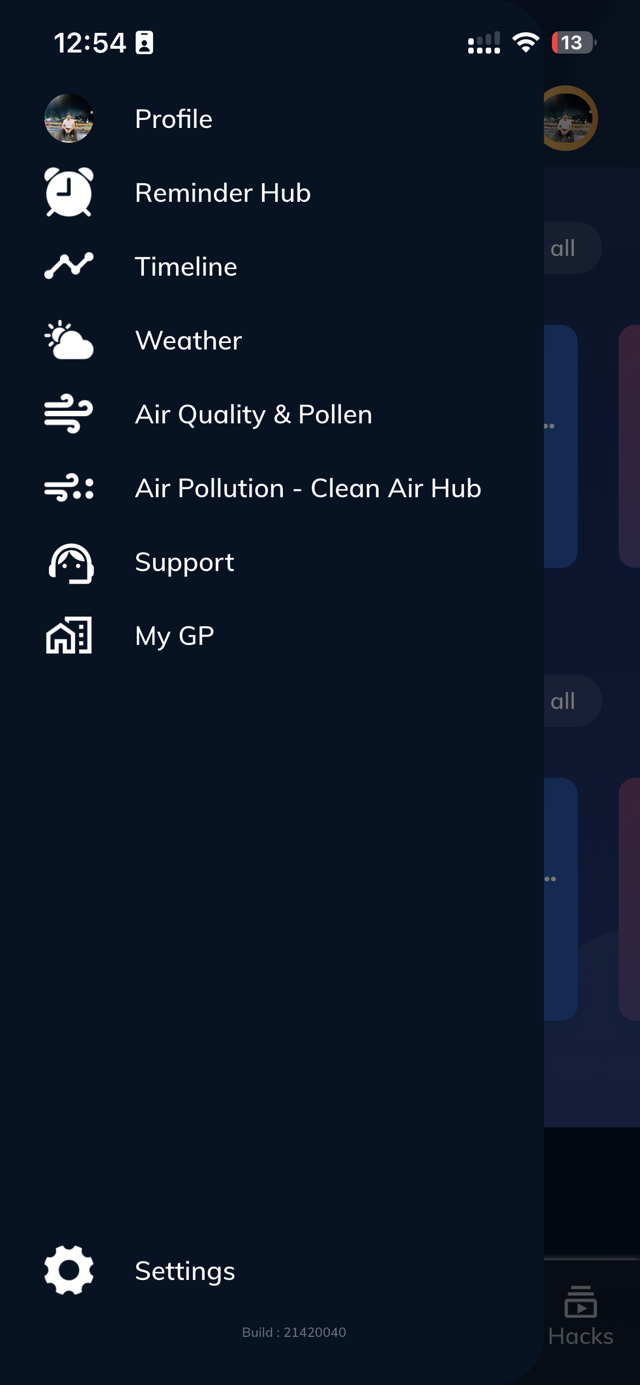
In the side menu, tap Settings to navigate to the Settings screen.
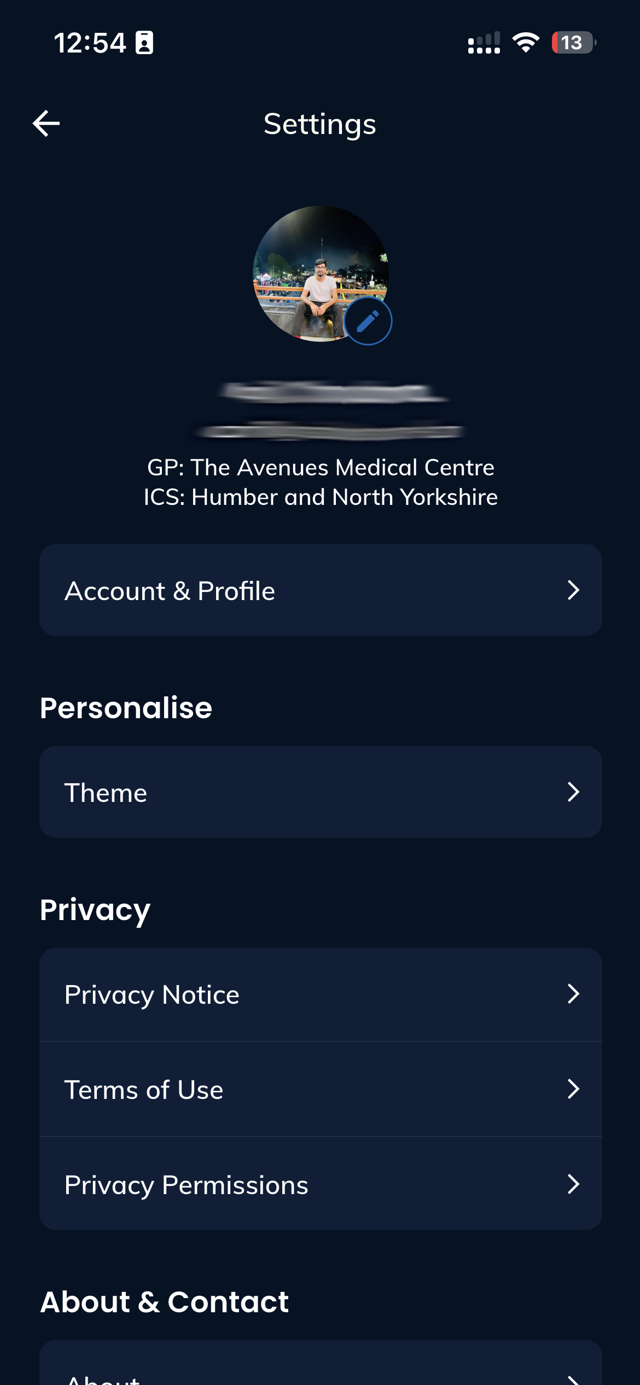
Tap Account & Profile to open your account-related settings.
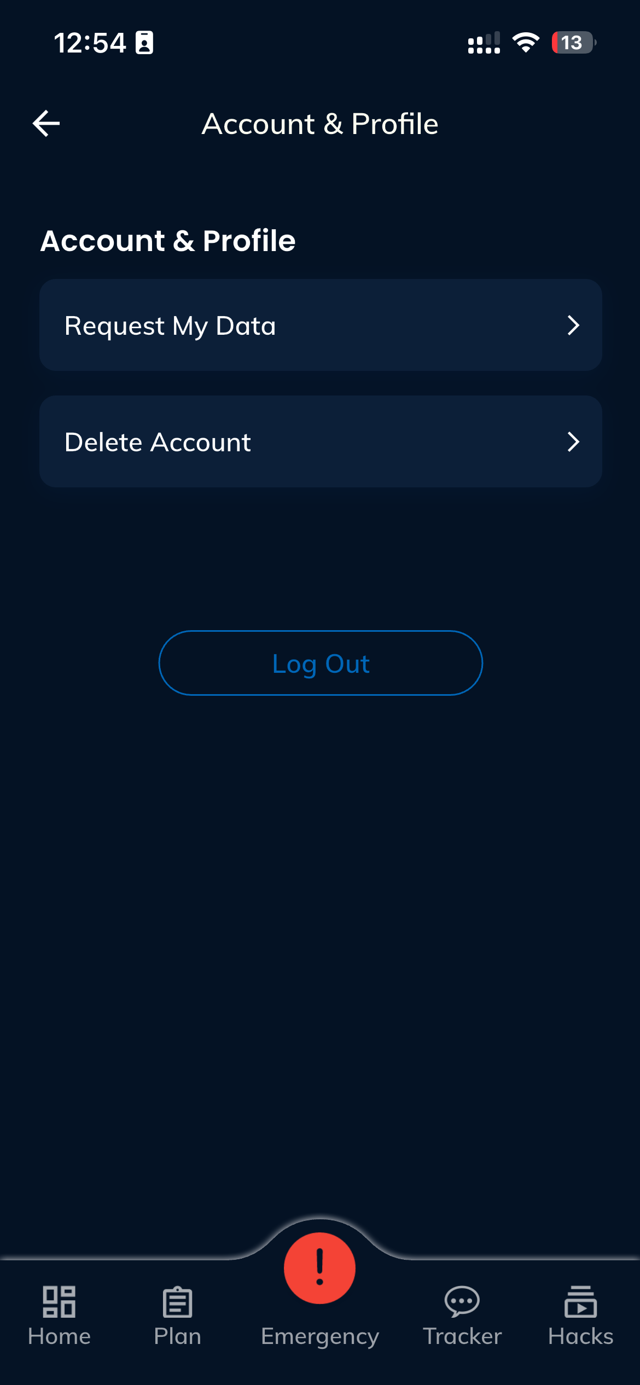
On the Account & Profile page, tap the Delete Account option.
A confirmation popup will appear requesting verification.
Enter your current login credentials to verify your identity. (Login options will be shown based on the logged in user type)
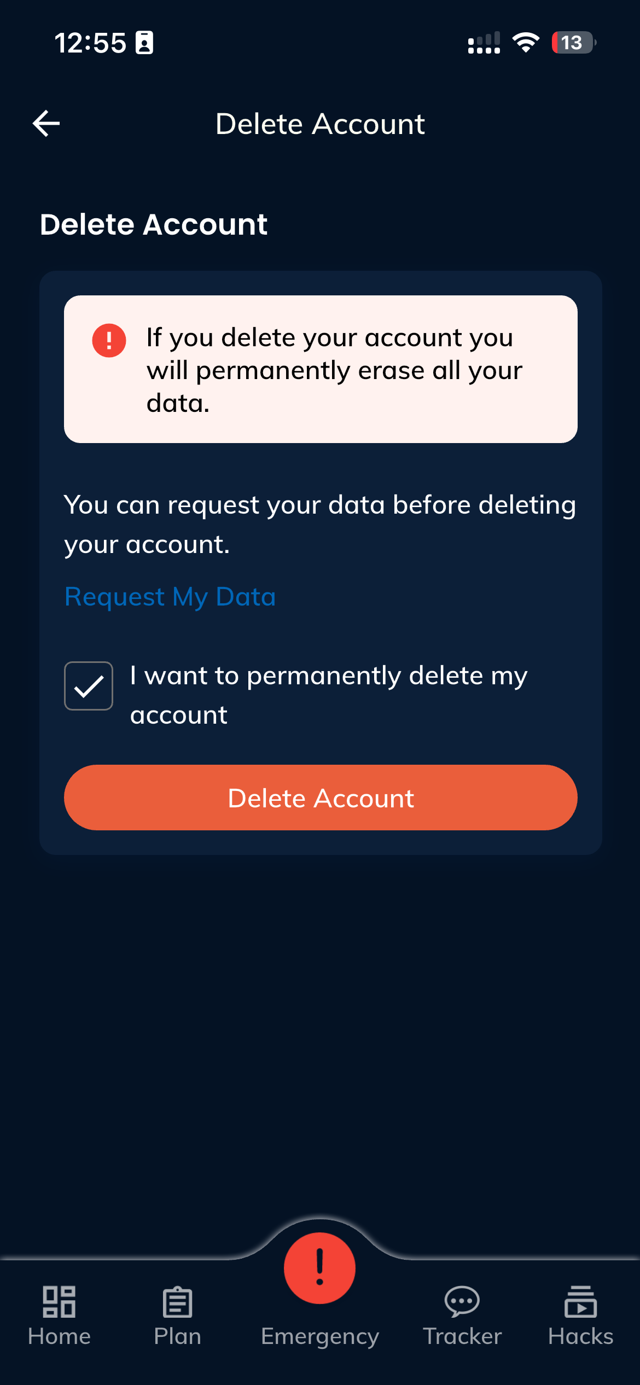
Once verified successfully, the app will navigate to the Delete Account page.

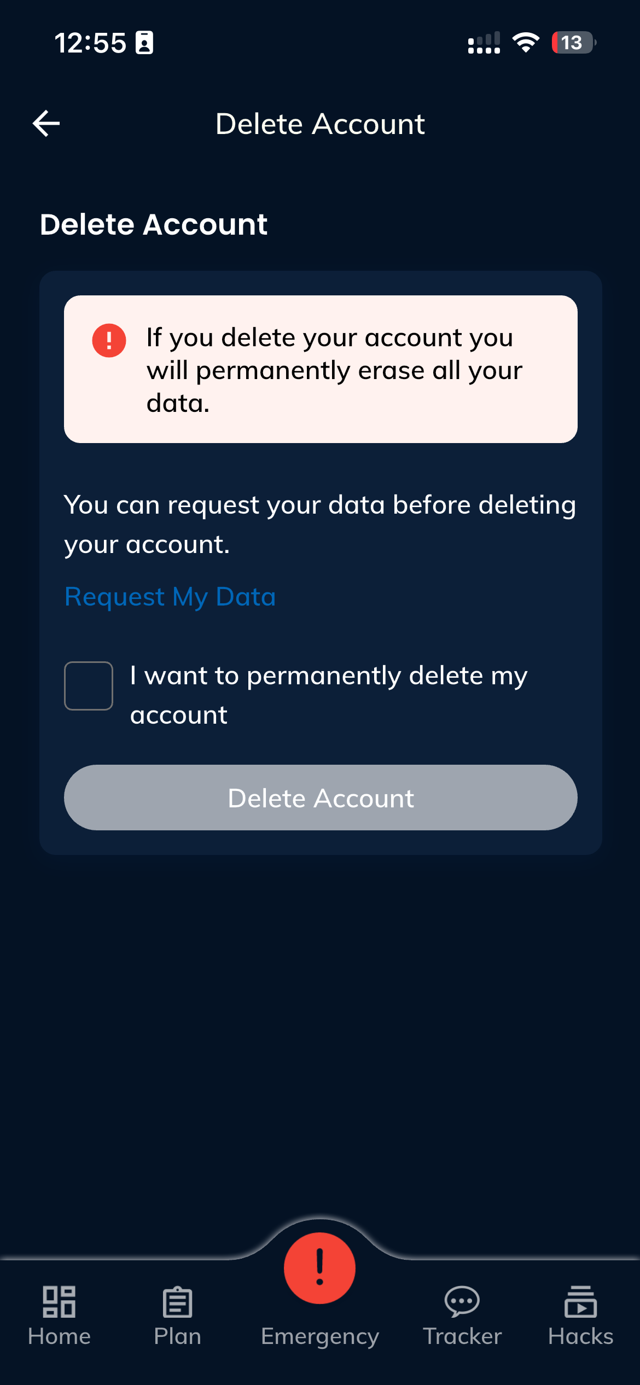
On the Delete Account page, check the box labelled:
“I want to permanently delete my account.”
This will enable the Delete Account button.
Tap Delete Account to proceed.
A loading screen will appear while your request is being processed.
After successful submission, a confirmation popup will appear:
“We’ve received your request and your account is queued for deletion.”
The app will automatically log you out within 3 seconds.